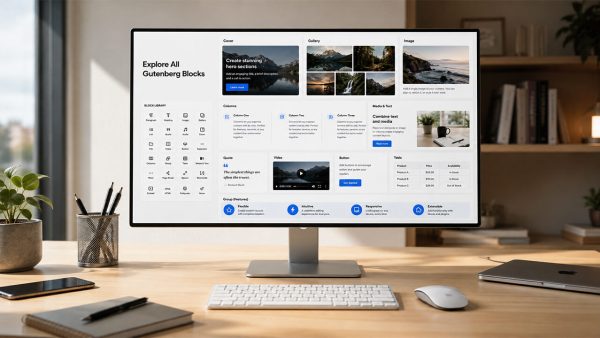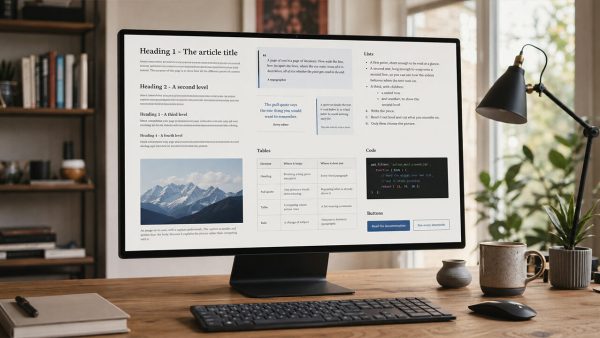

Pulsar ships eleven shortcodes, provided by the Pulsar Core plugin. They are editorial blocks: a product box, a card pointing at another article, a row of tabs, an app card, a video player. They take their colours, radii and type scale from the theme options, so they follow the palette of your site rather than carrying one of their own.
Below is every one of them: the code to copy, and underneath it exactly what that code renders. It is the same set of examples you find in Pulsar Theme → Shortcodes, where each has a live preview and a switch of its own.
1 · App card
Thanks to the official iTunes API, App Store apps can be linked in your articles in a far nicer, smarter way. Just use this shortcode with the id of the app and you will see the magic straight away. The id is in the full address of the app: take the run of digits out of it.
[app id="331441694"]And this is what it renders:
2 · Product box
When an article of yours talks about something on sale in an online shop, this shortcode links to it in a design of its own: tidy, recognisable, the same every time. Give it a picture, a title, a link and a price. On an offer you can give both prices, the old one and the new, and the saving is worked out for you.
[product title="In-ear headphones, active noise cancelling, heart rate sensing, Bluetooth, spatial audio, high fidelity sound, USB-C charging" price="€199.00" full_price="€249.00" badge="Lowest ever" img="https://pulsar.ispazio.net/wp-content/plugins/pulsar-core/assets/img/product-placeholder.jpg" link="#link1"]And this is what it renders:
3 · Reference to another article
When an article of yours should point at one you published earlier, give this shortcode one or more post ids separated by commas: a card appears and fills itself in with the picture, the title, the date it was published and the comments. With several ids you get the same full card for each of them, one under the other — for a compact list of links, use [read-also] instead.
[read]2261096[/read]And this is what it renders:
4 · Link an article from elsewhere
The same shortcode as the one above, [read], with two differences. Filled in by hand, it points at an article on another site while keeping the look that belongs to the theme. Given several post ids, it draws them as a compact list — smaller thumbnails and no description — which is what a row of related links at the end of a paragraph wants.
[read-also title="An article on another site" link="https://example.com" image="https://pulsar.ispazio.net/wp-content/plugins/pulsar-core/assets/img/article-demo-image.jpg" label="Read also"]An optional line about the link, useful to whoever is reading.[/read-also]And this is what it renders:
5 · Section title
A small heading that breaks a long article into parts, and stands out clearly from the text around it.
[section-title]Our verdict on the product[/section-title]And this is what it renders:
Our verdict on the product
6 · Button
A wide button good for any number of purposes, not least because it can be filled in in different ways: 1) with title alone 2) with title and label 3) with title, label and subtitle. Use it as the occasion asks, with or without a picture beside it.
[button title="Download the full guide" subtitle="PDF, 24 pages" label="In depth" link="#link1" img="https://pulsar.ispazio.net/wp-content/plugins/pulsar-core/assets/img/guide-download.jpg"]And this is what it renders:
7 · Menu button
Much like [button], but it takes less room and is made to be stacked: put several of them one under the other and you get a tidy vertical menu, all of a piece. Here too you choose whether to use the picture beside it, and whether to use a subtitle.
[menu-button title="Support and warranty" subtitle="How a replacement works" link="#link1" icon="https://pulsar.ispazio.net/wp-content/plugins/pulsar-core/assets/img/support-icon.jpg"]And this is what it renders:
8 · Tab navigation
A horizontal tab menu. Put in as many titles as you like, separated by commas, and the addresses the same way: they are paired up in order, the first address with the first title and so on. The “current” attribute says which tab gets the coloured background, counting from 0 for the first one.
[tabnav titles="Introduction,The test,The numbers,The verdict" link="#link1,#link2,#link3,#link4" current="0" style="light"]And this is what it renders:
9 · Horizontal menu
The horizontal menu is a versatile one too, good on all sorts of occasions and on pages as much as in articles. It puts several pictures side by side, each with a title and an address of its own.
[horizontal-menu img1="https://pulsar.ispazio.net/wp-content/plugins/pulsar-core/assets/img/menu-phone.jpg" name1="Phones" link1="#link1" img2="https://pulsar.ispazio.net/wp-content/plugins/pulsar-core/assets/img/menu-tablet.jpg" name2="Tablets" link2="#link2" img3="https://pulsar.ispazio.net/wp-content/plugins/pulsar-core/assets/img/menu-laptop.jpg" name3="Laptops" link3="#link3" img4="https://pulsar.ispazio.net/wp-content/plugins/pulsar-core/assets/img/menu-watch.jpg" name4="Smartwatches" link4="#link4" new4="New" img5="https://pulsar.ispazio.net/wp-content/plugins/pulsar-core/assets/img/menu-headphones.jpg" name5="Headphones" link5="#link5" img6="https://pulsar.ispazio.net/wp-content/plugins/pulsar-core/assets/img/menu-case.jpg" name6="Accessories" link6="#link6"]And this is what it renders:





10 · Video
When you need a video in an article or on a page, this is the shortcode for it. It works in two ways: the first with a still picture, a frame of the video that makes the article load faster. The second is the shortcode at its simplest — [video]url.mp4[/video] and nothing else — and there the film starts on its own. It suits videos meant to loop, short and light. Either way it adds a bit of movement to your site.
[video img="https://pulsar.ispazio.net/wp-content/plugins/pulsar-core/assets/img/video-demo.jpg" name="The field test" description="Two minutes filmed during the test" controls="yes"]https://www.example.com/video.mp4[/video]And this is what it renders:
11 · Timed content
With this one you can put a piece of text, a picture, a video, an iframe, a live blog inside an article without anybody being able to see it: only once the date and time you set have arrived does that content appear, for everyone.
[timed-content show="2020-01-01 12:30 Europe/Rome"]Open this page before 12:30 on 1 January 2020 and you will not see this text. Open it after that date and time, and there it is.[/timed-content]And this is what it renders: